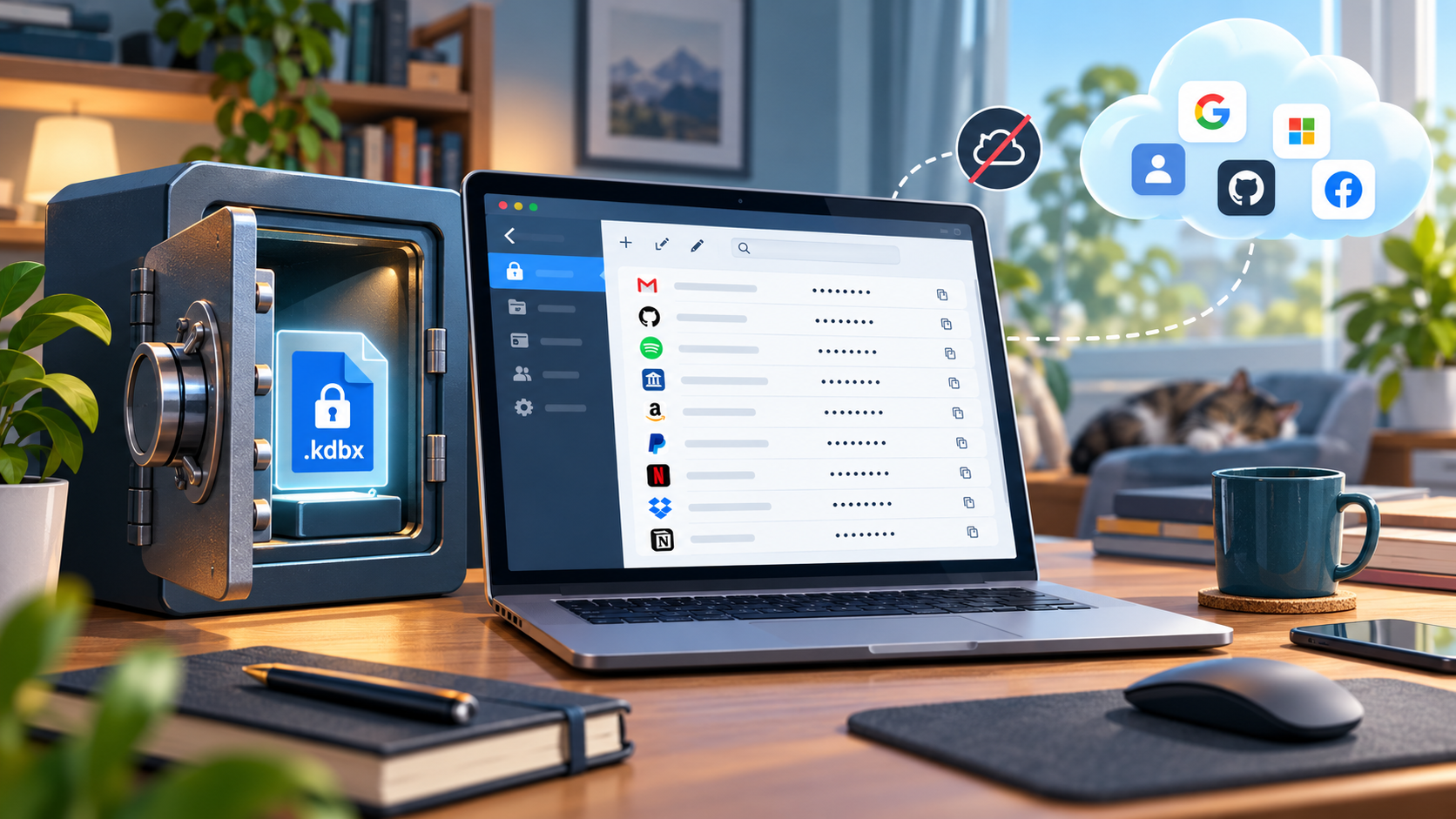
You go looking for a password manager and land on a page with a “Create an account” prompt, cloud storage and a range of subscription plans. So now you’re expected to sign up for yet another online service – this time to store your login details. Perhaps you’d feel more comfortable keeping your passwords on your own computer.
That’s possible: a password vault can be a local file.
The real danger is password reuse
Email, an online shop, your electricity provider, a club membership portal: every account needs its own strong password. Relying on memory for dozens of long, different strings of characters isn’t practical day to day. It’s easy to fall back on the same familiar password instead – perhaps with a different number at the end.
If that password is stolen from one service, attackers will try it on others too. A single data breach can then lead to several accounts being taken over. So the instinctive reaction – “Keeping all your passwords in one place is dangerous” – distracts from the real problem: weak, reused passwords spread across many accounts. A password manager makes it practical to use a different strong password for every account. Where to store those passwords is a separate decision.
The vault holds the crown jewels
Where you store them matters more than it does for other data. The vault that holds them all is in a category of its own: it’s not just another valuable possession, but a master key – it provides access to many other accounts and their data all at once.
The natural question, then, is not “Cloud or no cloud?” but “Who do I trust with all these passwords?” Reputable cloud-based password managers encrypt the vault so that even the provider cannot see the stored passwords. So this is not a choice between “secure” and “insecure”, but a question of who looks after the crown jewels: a third party whose service could be hacked or shut down – or you. The 2022 LastPass breach showed that a cloud vault is not guaranteed to stay out of attackers’ hands: attackers copied a backup of encrypted vault data. For some people, though, a vault that stays up to date automatically across several devices is still more reliable than copies they maintain themselves. The advantage of keeping it local is simple: what isn’t stored with a provider can’t be stolen in a breach there.
KeePassXC: The vault is a file on your computer
KeePassXC shows how password management can work without an online service. Its vault is a single encrypted file with the .kdbx extension. You decide where the file is stored. KeePassXC doesn’t need an online account or a third-party server to manage your passwords. The software is free; there is no monthly fee.
KeePassXC is available for Windows, macOS and Linux. It is also open source: its code is publicly available and can be independently reviewed and improved. You can use the same vault file on all three operating systems.
When you create the vault, you choose a master password. “Encrypted” means the stored contents are unreadable without that password. This is the one password you must never lose.
The file is decrypted on your computer. To make sure it stays local, store it in a folder that no cloud service syncs automatically.
The built-in generator can create long, random passwords for each of your accounts. KeePassXC stores each one along with the username and web address for that account. This doesn’t automatically replace passwords you’ve already reused, though: you need to change each password through the relevant service, then save the new one in the vault.
The KeePassXC-Browser extension saves you from having to type your login details into the browser. It supports Firefox, Chrome, Edge, Chromium, Brave and Vivaldi. Once set up, it connects to KeePassXC on the same computer and enters usernames and passwords directly into the appropriate login fields. KeePassXC must be running and the vault unlocked for this to work.
Control means taking care of your own backups
The usual email recovery process doesn’t apply to your master password. There is no “Forgot password” option, no support team that can decrypt the file for you, and no spare key. If you lose the master password, the entire vault stays locked for good – with all the login details stored inside. So this one password must meet two requirements at once: it must be hard to guess, and you need a safeguard in case you forget it.
Keeping the file on your own computer doesn’t make the master password any less important. It does eliminate one route of attack: a breach at the cloud provider. But if a copy of the file falls into the wrong hands, attackers can try as many passwords as they like – with no account lockout and no limit on failed attempts. It then comes down to the strength of the master password. Encryption slows those attempts down, but it is no substitute for a strong password.
You’ll also be typing this password regularly to unlock the vault. It therefore makes sense to choose a strong password you can remember reliably. A long sequence of randomly chosen words is easier to remember than a random string of characters and is still hard to guess. Writing it down on paper and keeping the note locked away, separate from your computer, provides an extra safeguard in case you forget it. This sets the master password apart from your individual account passwords: the generator can make those very long and random, because the browser extension fills them in and no one needs to remember them.
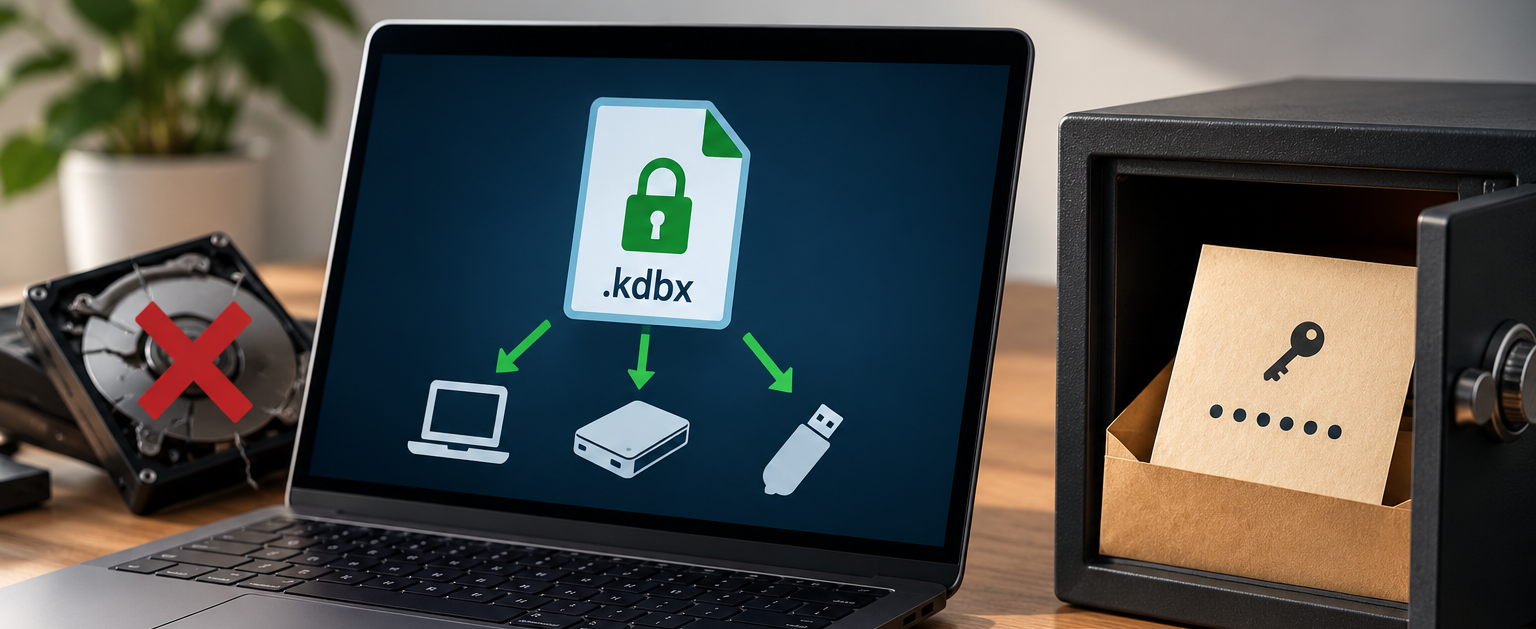
The .kdbx file itself is just as important. If it’s lost in a hard drive failure and there is no backup, all the passwords stored in it are gone. That’s why managing passwords locally means regularly making a copy on a separate storage device, such as an external hard drive that you unplug once the backup is complete. A second folder on the same drive won’t protect you if that drive fails. Opening the backup occasionally lets you check that it’s actually usable.
Does everything really need to stay in sync?
If you want the same passwords available on your laptop or phone, the .kdbx file needs to be transferred there, along with any later changes. This is called synchronization. KeePassXC doesn’t provide its own cloud service for this; you’re responsible for arranging it. Simply putting the file in a cloud folder that syncs automatically may seem like the easiest option – but it’s not the best default choice if you want a local vault, because the file is then back with a cloud provider, even though it’s encrypted. And however you handle synchronization, it is no substitute for a separate backup: it syncs an accidental deletion just as reliably as a new password.
Rather than defaulting to “sync everything”, it’s worth working out what you actually need. Keeping the full vault on your computer doesn’t rule out managing passwords on your phone. If you mostly use your accounts at home, you may only need a handful of login details on the go, and you can choose to limit what you keep on your phone. It still takes effort, though: that smaller set of passwords for your phone is effectively a second vault whose entries also need to be maintained – when a password changes, you have to remember to update it there too.
But if you make payments or do your banking on the go, or regularly log in to lots of apps, you have good reasons to keep your important passwords with you at all times. In that case, a reliable way to keep your devices in sync makes sense – whether over your own home network or through cloud storage you’ve deliberately chosen. Cloud storage is an option, but it should be a conscious choice, not just somewhere you happen to save the file.
KeePassXC itself is a desktop application. On a smartphone, a compatible app opens the same .kdbx file, whether it’s the full vault or a small selection for mobile use. In its FAQ, the KeePassXC project recommends:
- For Android: KeePassDX and KeePass2Android
- For iOS: Strongbox and KeePassium
The vault is yours
A password manager doesn’t have to be another online service. With KeePassXC, the cloud remains an option, not a requirement. You decide where the vault is stored and which devices get a copy. The price of that independence is taking responsibility yourself – for the master password, a separate backup and, if your day-to-day needs call for it, a deliberate approach to syncing. Control here doesn’t mean making everything available everywhere; it means deciding for yourself.
How important is it to you to have your passwords available on your phone? Share your experiences with local password vaults in the comments.
Comments
When is it time to backup? Only after a major change (eg. two-factor-authentication or password of an important account changes). Most passwords can be reset via email or phone text if you don't have your password at hand.
I’ve used KeePassXC and still do, but for the past two years or so I’ve also been using Password Depot, with the databases stored locally, and I find it a very good product.
They’ve recently updated their algorithms and passed an audit. It has native apps. What made me choose it was precisely the fact that it prioritises data sovereignty and allows for local storage. I believe the latter is crucial for a password manager.
It's perfect for any kind of list / database. I won't trust any kind of password keeper except one I manually update myself.
If that's true, then what about a cloud-password system like Proton Pass, that never sends any update off of your PC unless it is first fully encrypted, AND requires username/password to login PLUS Two-Factor authentication.
Would that be equally as secure as putting your kbdx on a cloud synced folder and also requiring that "key" on your local USB be present in addition to your username/password?
.
I do not trust ANYBODY / Any Organisation / Any Business, with my passwords.
For those myriad of 'passwords' that I only occasionally use, I record them in a note-book and "look them up" as required.
.
For all those high-frequency accounts that I access regularly, I randomly change the password several times a year.