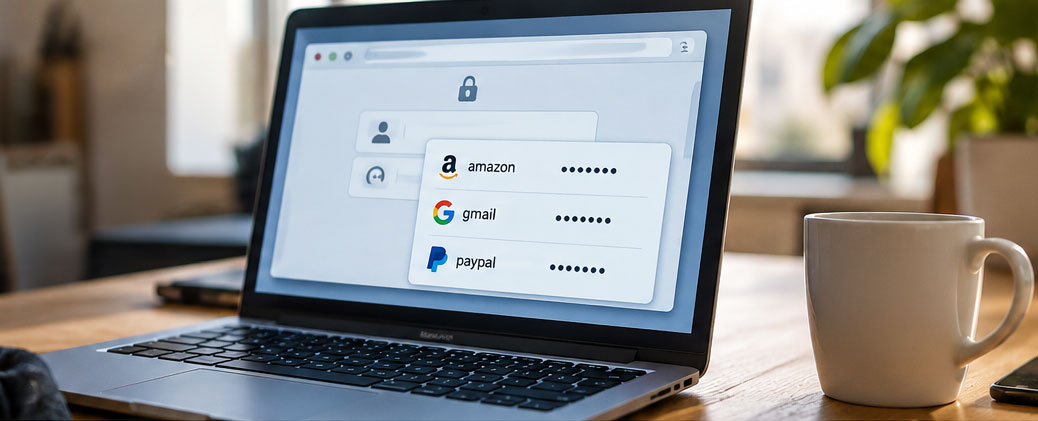
Your laptop is sitting open on the table, and you step away for a quick coffee. Your browser has the logins saved for your email, your favorite online store and a handful of other accounts. Anyone who sits down now won’t see a plainly readable list of passwords.
But can someone use that brief unwatched moment to log in to your accounts?
My laptop is unlocked – does that leave every account wide open?
Your browser can drop saved credentials straight into login forms. Whoever is sitting there doesn’t need to know the passwords to do it. For many accounts, access is then possible – even if someone walks off with the laptop in this state. And accounts you’re already signed in to are usually reachable anyway.
First things first: saving passwords is not a mistake in itself. It’s what makes it practical to use a different, long password for every account in the first place. So saving has a real benefit – what follows is about protecting that collection sensibly.
Here’s the boundary that’s easy to miss: a PIN or fingerprint prompt when you view saved passwords does not automatically protect the filling-in of those passwords too. Some browsers offer a separate prompt for that, which you have to switch on yourself. So the fact that viewing is protected doesn’t mean nobody can use your saved logins.
The single most effective defense against this kind of access is locking your screen. On Windows, lock it with the Windows key + L before you walk away. On top of that, set your computer to lock automatically after a short period of inactivity. A dark screen on its own isn’t enough; getting back to work has to require signing in again.
Where do my passwords live – only on my computer?
Normally your passwords sit in files within your browser profile – the same place your personal browser settings are stored. How well those files are protected depends on your browser and operating system. As soon as you sync passwords across devices through the browser’s own service, an encrypted copy is added on the provider’s servers.
It’s worth taking a close look at the settings here: some browsers can save passwords directly in your provider account, even without full browser sync. What matters, then, is whether the storage location is set to your device or your account. “Sync off” doesn’t necessarily mean “everything stays local.”
With Firefox, you should also turn on the “Primary Password,” formerly called the “Master Password.” It’s off by default. Mozilla points out that without a Primary Password, saved credentials can be read straight out of a copy of your browser profile. That’s true even on a locked computer, as long as its drive isn’t encrypted: anyone who gets hold of the profile file can take it with them and read it elsewhere. Turning on device encryption (on Windows, BitLocker or Device Encryption) protects against exactly that.
The Primary Password adds a layer of protection to this collection, but it’s no substitute for a screen lock either. Here’s why: Firefox generally asks for the Primary Password only once – the first time you access a saved password after startup. After that, the password store stays open for as long as Firefox is running, with no repeat prompt and no time limit. If you rarely close the browser and leave it open for days, this offers almost no protection against someone who briefly sits down at your unlocked computer. The Primary Password is aimed mainly at the copied or stolen profile file – the computer that gets carried off. Against the quick reach for your open laptop, the screen lock remains the decisive measure.
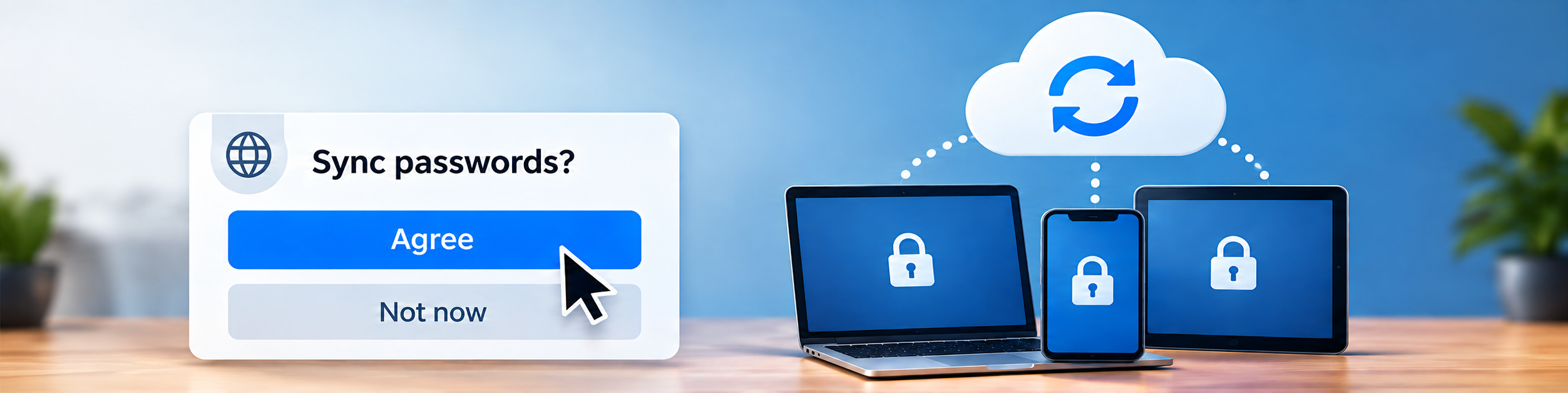
“Sync passwords” – should I agree?
Saying yes makes your saved and changed passwords available on your other connected devices too. That’s convenient, but it turns your sync account into a central target. Someone taking over that account can – depending on encryption and settings – put many logins at risk at once. And nobody needs to get their hands on your laptop to do it.
But sync isn’t only a risk – it’s also a safeguard. If you store everything purely locally, you may lose access to your passwords entirely if a device is lost or breaks. With sync, you can get back to them from another device after a device fails. So alongside the convenience, there’s a solid benefit as a backup against data loss.
If you don’t need to keep devices in step, you can stick with local storage – but then you’ll need to take care of backups yourself. If you do use sync, protect the associated account with a long, unique password and any additional verification on offer. Recovery codes belong somewhere separate from your password store, for example printed out and kept in a safe place. Otherwise the very tools meant to rescue you sit inside the password collection you may no longer be able to reach.
This decision applies to your own devices. On someone else’s computer or a public one, you should neither save passwords nor sync your password collection.
My Windows account has a password – isn’t that enough?
Your Windows account password protects the sign-in, but it doesn’t lock a session that’s already open.
If you share a computer, each person needs their own operating-system user account. Separate browser profiles keep settings apart, but within the same user account they don’t reliably protect against one person reaching into another’s data. The same goes for macOS and Linux.
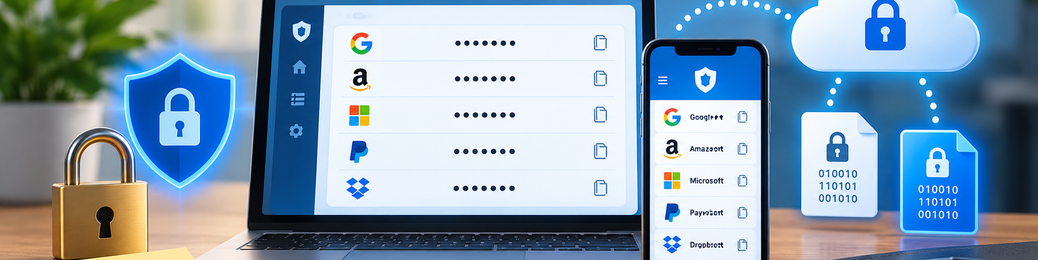
Do I need a separate password manager – and what does “encrypted” actually mean?
A standalone password manager can make sense if you use several browsers or need your passwords across devices. Cloud managers store an encrypted vault with the provider, who ideally can’t read it themselves. Purely local managers keep the file only on your device; you take care of backups yourself.
Switching doesn’t automatically mean more security, though. “Encrypted” is a promise, not proof of a careful implementation. If a cloud copy is stolen, two things matter most: how strong your master password is for opening the vault, and how thoroughly the service processes it before turning it into the key. That processing work is meant to make every attempt to guess the master password expensive. If it’s set too loosely, attackers can run through far more possibilities with the same computing power.
A login lock on the provider’s side won’t help here: attackers don’t have to crack the stolen copy online. They can copy it onto their own machines and work through the possibilities at their leisure – with no time limit and no way for the provider to step in. A long, unique master password is something you can choose yourself. Whether the provider has implemented and configured the encryption carefully, on the other hand, is something you as a user can barely check. Here, some trust remains necessary.
That encrypted vaults really do get stolen was shown by LastPass: in 2022, vault copies containing encrypted passwords were taken from its cloud. That didn’t make the passwords automatically readable. But the stolen copies were now available for decryption attempts.
If you want to dig into the technical background, you’ll find well-grounded analyses from independent security researcher Wladimir Palant on his blog “Almost Secure” at palant.info.
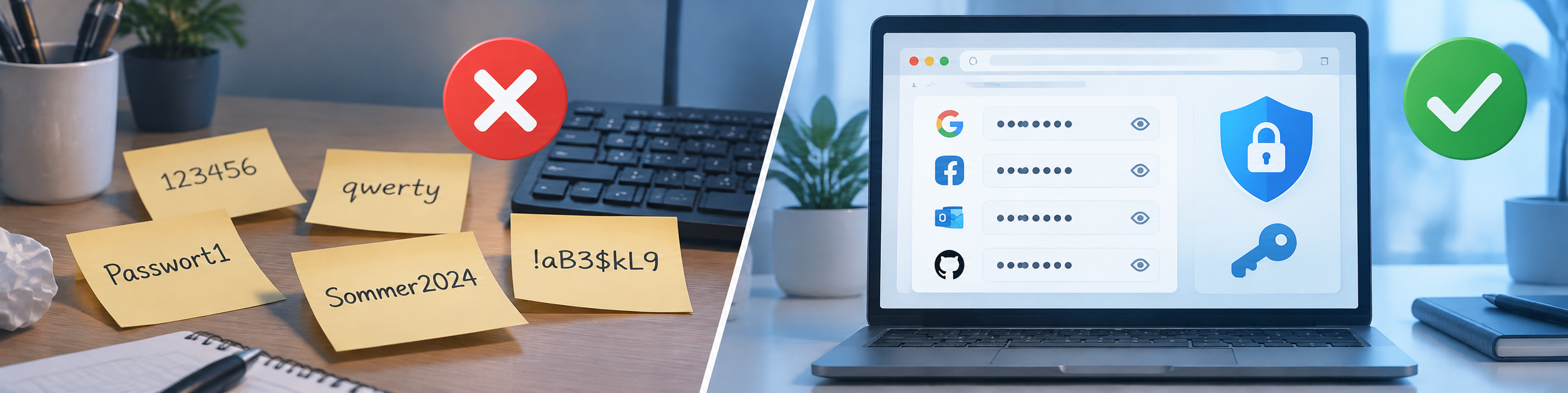
So better not to save them at all?
No. Saving itself isn’t the problem – it actually brings two solid security benefits. The first: it makes it practical in the first place to use a different, long password for every account. Then, if a single password is stolen from one service, it doesn’t immediately open all your other accounts too.
The second benefit turns a common assumption on its head: if you save nothing out of caution and type everything in by hand instead, you’re actually worse protected against one of the most common scams. That’s because your browser only fills saved credentials automatically on the genuine, matching website. If a scam link lands you on a fake page that looks convincingly like your bank, the login field stays empty – the browser can tell from the address that the page isn’t right. But exactly where the browser would have refused, a person often types in their password without a second thought. So the empty field isn’t a glitch, it’s an active warning – and the seemingly cautious decision to save nothing is the riskier one at this point.
What you need to protect are the places where many logins come together: your device and, where applicable, your sync account. On a private, up-to-date device with its own user sign-in and an active lock, the browser’s storage is fine for everyday use. In short: go ahead and save, but lock your screen – and when the field on the phishing page is unexpectedly empty, your password manager is your friend.
How do you handle this: browser storage or a dedicated manager, sync on or off? Let us know in the comments which solution works for you in daily life.
Comments
Having said all that, the article on password usage is quite good. Encryption is your friend and your enemy. Make recovery backups and don't forget where you keep them. BTDT, lived to tell the tale.
I pay $10 a year because I appreciate them so much. $10 a year!!!
Steve Gibson (grc.com and Security Now) and Leo Laporte (twit.tv) use BitWarden and explain clearly why they do. They know their stuff.
I'm not sure that bad digital practice is limited to an age group but I've seen too many people who are obviously unaware of the relative ease it can be to compromise login details - especially if we lazily give the hackers a helping hand.
I had both of them going side by side and eventually gravitated to Proton Pass and stopped using Bitwarden.
My solution is to replace the built-in managers with BitWarden. I hope it's the right way.
I have a smartphone but avoid it like the plaque as much as possible. However, many organizations and websites are often broken nowadays as they have been written to mainly run on a phone. The coding is sloppily written and so it is often likely it will not run on a 'proper computer'. This is the scourge of society whereby we are all being pushed to use smartphones.
My opinion is the security on smartphones is flaky. Yes; I guess the banking apps are secure and have been correctly written to make them that way. Otherwise, banks will lose a lot of money if it is proven their app was at fault when money gets stolen.
I rarely allow my browser Firefox to store passwords. I only allow it to save ones that don't much matter about i.e. where no money is involved or a lot of personal details about me are not part of a condition to use such websites.
My KeePass database is backed-up every night just before my machine shuts down.
I say: "Keep It Local - Keep It Safe"
KeePass and its other Open Source variants are well worth having a look at.