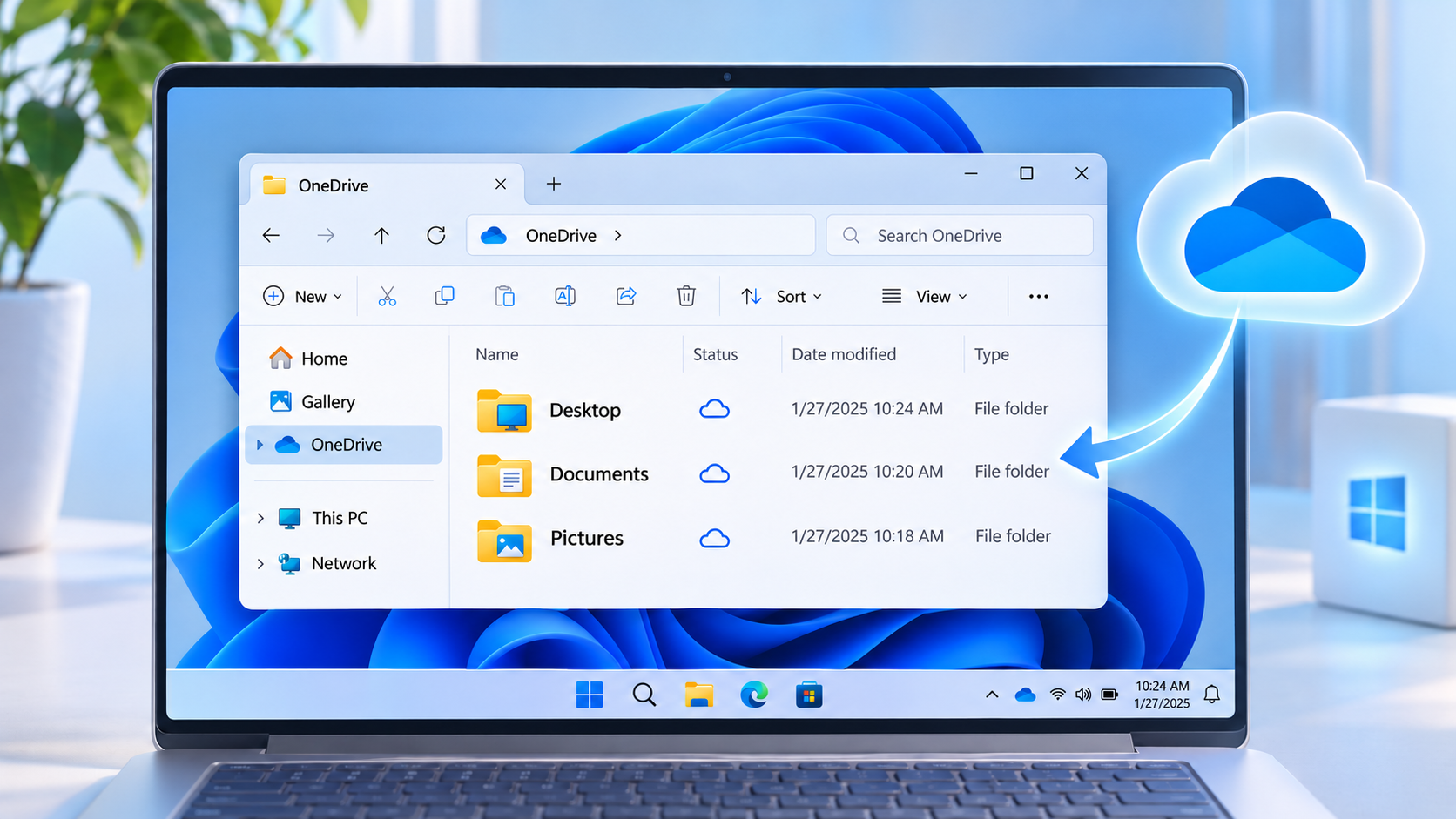
Our support team sometimes hears from SoftMaker Office users who say the programs are unusually slow to open and save documents. The problem is not the software itself but where the files are stored: the documents are no longer where users expect them to be.
We tested this on a fresh Windows 11 installation. We had opted out of OneDrive during setup. Yet it still appeared as a storage location in File Explorer afterward. We clicked it, signed in and clicked “Next” a few times – and just like that, the Documents, Desktop and Pictures folders were inside a folder called OneDrive.
Before you decide whether to use OneDrive, you should understand what it does to your folders – and why “PC folder backup” is no substitute for an independent backup.
One folder, not your entire hard drive
OneDrive does not back up your hard drive. It synchronizes a specific folder, usually called “OneDrive” and located in your user folder. Its contents are kept in sync with the cloud. Other folders and an additional D: drive are not automatically included. A file in this folder can still be stored in full on your hard drive; its status icon tells you whether it needs to be downloaded from the cloud first.
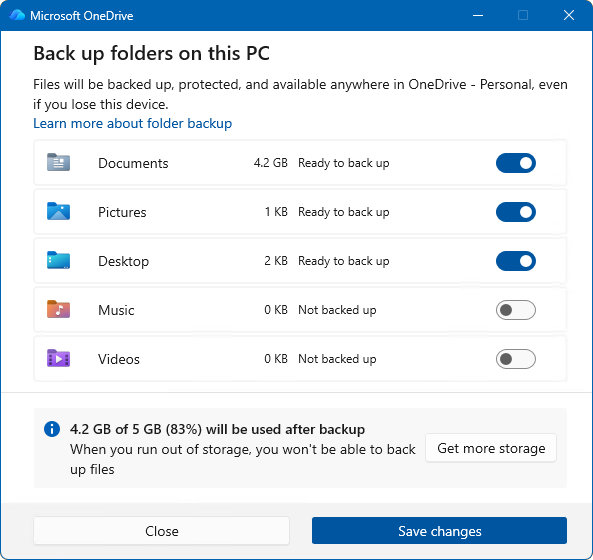
The reason your documents end up there anyway is a feature called PC folder backup. It covers the standard Desktop, Documents and Pictures folders, and in some versions Music and Videos as well. This feature does not simply copy those folders to a second location. Windows moves them, along with their contents, into the OneDrive folder.
The wording is misleading. The window is titled “Back up folders on this PC,” and the switches for Documents, Pictures and Desktop are already on. The words “Back up” suggest making a copy. Two screens later, OneDrive itself says it will “move” files into the OneDrive folder. If you want to keep a folder local, you have to turn its switch off yourself first.
Your subfolder structure stays intact: your invoices folder under “Documents” remains a subfolder of “Documents.” Only the location of its parent folder has changed.
Declining OneDrive during Windows setup does not make it disappear: the OneDrive software is still installed and appears in File Explorer, ready for the next click – whether deliberate or accidental.
Why your software saves to the new location
Windows treats “Documents,” “Desktop” and “Pictures” as predefined locations. Programs can ask the operating system where these locations are. When you turn on PC folder backup, Windows changes the stored path. A program that asks Windows for the Documents folder, as it should, now gets a path inside OneDrive.
You still save to “Documents” – yet your files end up in OneDrive, without you ever having selected online storage in the program.
Some programs do not ask Windows but use a fixed path instead. They keep saving to the old location. You end up with two “Documents” folders: one inside the OneDrive folder and one outside it. Only the first is synced.
What File Explorer shows – and what it doesn’t
Check the location. Open “Documents” in File Explorer and look at the path in the address bar. If it includes “OneDrive,” the folder you have opened is inside the OneDrive folder. Check Desktop and Pictures in the same way if needed. This shows you the actual storage location, not just the familiar name.
Check the status icons. Small icons next to files and folders show their status. A blue cloud means “Available when online”: the file takes up no space on the device and is downloaded only when you open it. A green check mark in a white circle means “Available on this device”: the file is stored locally. A white check mark in a solid green circle means “Always available on this device”: the file is kept permanently on the device.
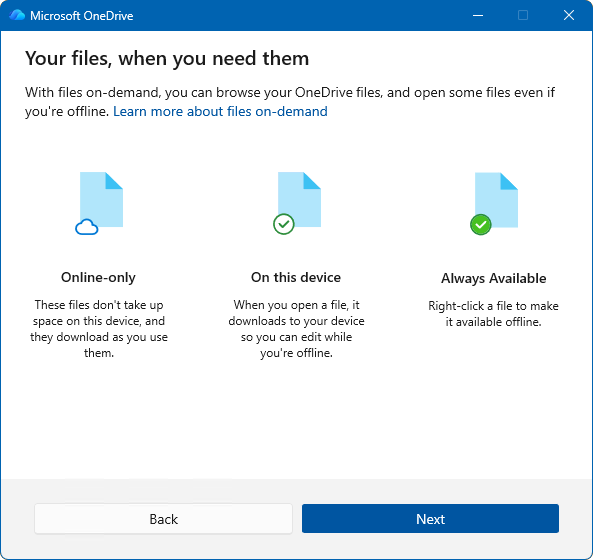
How long it takes to access a file marked “Available when online” also depends on your internet connection and the amount of data involved. Having to download the file first can noticeably delay opening it; saving can also take longer when OneDrive is involved. A delay in your office application may therefore be related to where the file is stored, not to the application itself.
If you want to keep using OneDrive but avoid waiting for downloads when you open files, right-click the relevant folder, such as “Documents,” in File Explorer and choose “Always keep on this device.” The files will then take up space on your hard drive.
Syncing is no substitute for a backup
Continuous syncing does not give you an untouched backup copy in the cloud. Delete a file from the OneDrive folder on your PC, and it is deleted from the cloud too. Overwrite its contents, and that change is synced as well. OneDrive keeps both locations in sync – even when a change is accidental.
With a personal account, deleted files can be recovered from the OneDrive recycle bin for up to 30 days. Overwritten files can be recovered through version history, though only a limited number of earlier versions are kept. An independent backup still requires a copy that is kept separate from the ongoing sync. The term “PC folder backup” should not obscure that distinction.
When OneDrive suits the way you work
If you do not already make your own backups, OneDrive can provide valuable protection against PC failure: files that have already been uploaded are not lost along with the computer. Syncing is also useful if you regularly work on several devices. Your documents are available there without you having to transfer the files yourself every time you switch devices.
It is worth looking more closely if you have large amounts of data or a slow connection. The free storage allowance is 5 GB. If a folder is larger than that, OneDrive reports that there is not enough storage to back it up. And if you want your files to stay strictly local, you also have a valid reason to stop PC folder backup.
Back to your PC: The order matters
Turning off or uninstalling OneDrive first may sound like the quickest way back. But all the files need to be back in their local folders before you do that. To find all the settings you need, click the OneDrive cloud icon (in the taskbar at the bottom right, often hidden behind the small arrow), then the gear icon and “Settings.”
1. Download everything to your PC first. First, check that your PC has enough free space. Under “Sync and backup,” open “Advanced settings.” In the “Files On-Demand” section, you will find the “Download all files” button. Alternatively, right-click the OneDrive entry in File Explorer’s left-hand pane and choose “Always keep on this device.”
Wait until everything has finished downloading. OneDrive itself points out later that online-only files cannot be moved and must be downloaded first.
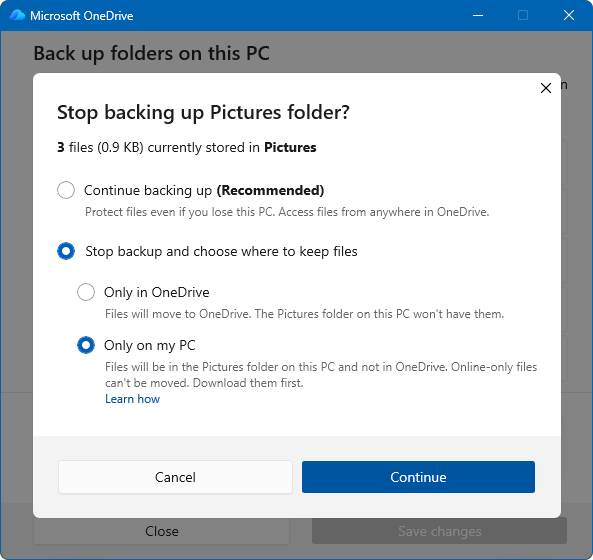
2. Stop PC folder backup – and don’t accept the defaults. Save and close any open documents first. Under “Sync and backup,” click “Manage backup” and turn off one folder, such as Desktop. OneDrive then asks, “Stop backing up the folder?” The default selection is “Continue backup (recommended).” Instead, select “Stop backup and choose where to keep files.”
Below that, “Only in OneDrive” is again selected by default. This would leave the files in OneDrive rather than return them to your local folder. Select “Only on my PC” and only then click “Continue.” The files moved back to your PC are removed from OneDrive in the process – including on other devices that sync them.
Not OneDrive’s finest moment: if you follow the defaults at each step, you end up with the opposite of what you wanted.
Repeat this step for each affected folder: Desktop, Pictures, Documents and, if applicable, Music and Videos. If your version of OneDrive does not show these options, manually move the files back from the OneDrive folder after stopping PC folder backup.
3. Check that everything is back in its original location. OneDrive then reports that the files are in the local folder and are no longer in OneDrive. In File Explorer, the address bar once again shows a path without “OneDrive,” such as C:\Users\Name\Desktop. Open a few files, check the subfolders and spot-check both older and newer documents.
4. Optional: unlink your PC from OneDrive. You will find “Unlink this PC” under “Account.” This stops syncing on this computer. You do not need to uninstall OneDrive.
Other files you have stored in OneDrive remain there. If you want to tidy up your cloud storage, unlink your PC first – otherwise, deleting files in the cloud would also delete the corresponding files still being synced on your PC.
What matters is not whether OneDrive is good or bad, but whether you know where your files are. Whether you use the cloud or keep your files local, it should be your choice – not a surprise the next time you save.
Confession time: Did you deliberately set up OneDrive – or were you surprised to find your files in a new location?
Comments
BTW: with iCloud drive similar issues exist, probably with each cloud storage/sync/backup solution, or even with e-readers and -books. You have to be alert with such services for unwanted default behaviour!
This is incorrect. For non-business users the 5GB free storage allowance is actually 1GB per user for 5 users, and this is soon to be reduced to a shared storage space of 2GB.
I cannot rationally distinguish this from theft of data.
If you say NO to OneDrive, that is an absolute - to have it then install and sit, like a crab under a stone, awaiting your error is beyond 'snake-oil'.
There is no rationale that I can think of for expropriating 'Explorer destinations' in this way.
But it does clearly demonstrate their business ethics!