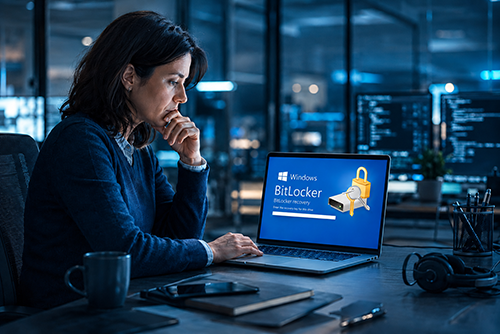
Your PC stops starting normally, then after a repair or a boot problem, a blue screen suddenly appears – and Windows asks for a 48-digit “recovery key.” Many people see that message for the first time in their lives.
What’s unsettling is this: BitLocker is often already active on the computer, even if the owner never knowingly turned it on.
The moment your own PC asks for a key
This is how the story often starts: The computer had a problem, maybe after a failed boot, a repair or a hardware change. Windows no longer starts normally and instead shows nothing but a prompt asking for a recovery key. 48 digits. No clue where to find it. No “Forgot password?” link that magically fixes the situation.
If this happens to you, it’s easy to assume BitLocker is some sudden malfunction or a nasty piece of Windows overreach. In reality, it’s neither. It’s doing exactly what it was designed to do: protect data so effectively that without the correct key, nobody can get to it anymore – not even the owner, if that key is missing.
What BitLocker is, in plain English
BitLocker is Windows’ built-in drive encryption. Put simply, the data on your drive is stored in a way that makes it unreadable without the right key. As long as you sign in normally on the right device, you usually won’t notice any of this day to day. Windows unlocks the data in the background.
The benefit is very real: If a laptop is stolen or the SSD is removed and plugged into another computer, the thief can’t do much with the data. Photos, documents, email, saved browser data – all of it stays unreadable. Especially on laptops that can be lost or stolen while traveling, that’s a very effective layer of protection.
Behind the scenes, this often involves a TPM – a small security chip in the computer that stores the key – along with other security features such as Secure Boot and the Windows Recovery Environment. If those requirements are in place, Windows can use encryption almost automatically.
So far, the picture is straightforward: If you keep sensitive data on a portable Windows PC, this is exactly the kind of protection you should want.
The surprise: Many Windows 11 users already have BitLocker running
The confusing part starts with the names. In Windows, two terms are often blurred together even though, in everyday use, they feel different.
“Device encryption” is the simplified, automatic version. It’s available in Windows 11 Home. “BitLocker drive encryption” is the full, configurable version and is only available in Pro, Enterprise and Education editions. Under the hood, though, both rely on the same technology.
And that’s where the big misunderstanding begins. A lot of users hear “BitLocker” and think: I never turned that on, so it doesn’t apply to me. In reality, device encryption may already be active on their computer – technically the same thing that can lead to exactly the same kind of recovery-key screen.
What matters is how Windows 11 was set up. On newly configured PCs, device encryption switches on automatically once you sign in with a Microsoft account – assuming the required security pieces are present: a usable TPM, Secure Boot and a properly configured Windows Recovery Environment. The recovery key is then tied to that Microsoft account.
If you use a local account instead, this automatic encryption does not just switch itself on in the same way.
That’s the real surprise: Millions of people are effectively running BitLocker on their Windows 11 PC without ever knowingly flipping a switch. Not because Windows is secretly doing something sinister, but because encryption is increasingly becoming the default on new devices. A plain upgrade of an older system doesn’t automatically enable it, but a newly set-up Windows 11 PC often does.
So if you set up a modern computer with a Microsoft account, the right question is no longer: “Should I turn on BitLocker at some point?” It’s more like: “Could encryption already be on – and do I know where my recovery key is?”
The downside: Encryption doesn’t care whether it’s a thief or the owner
This is the part many people only discover when it’s too late. The same encryption that locks out a thief can also lock out you after a hardware change or a boot problem – if you don’t have your recovery key.
That can happen after a motherboard replacement, changes involving the TPM, certain changes in UEFI or BIOS – in other words, the firmware settings that start before Windows – or after a more serious boot issue. At that point, Windows is essentially saying: I’m no longer sure this is still the same trusted environment. Please prove that you’re the authorized owner by entering the recovery key.
And that’s where encryption is ruthlessly neutral. It recognizes no proof of purchase, no plausible explanation and no good intentions. Either the key is there, or the data stays locked.
This is why one point matters: Microsoft cannot recover a lost recovery key for you. If it’s gone and the device demands it, your data may be lost for good in the worst-case scenario. That isn’t Windows being mean. It’s the logical consequence of encryption that actually works.
What you should do right now
The practical answer is therefore not: panic and turn BitLocker off. The right answer is: know that it may already be active and make sure your recovery key is stored safely.
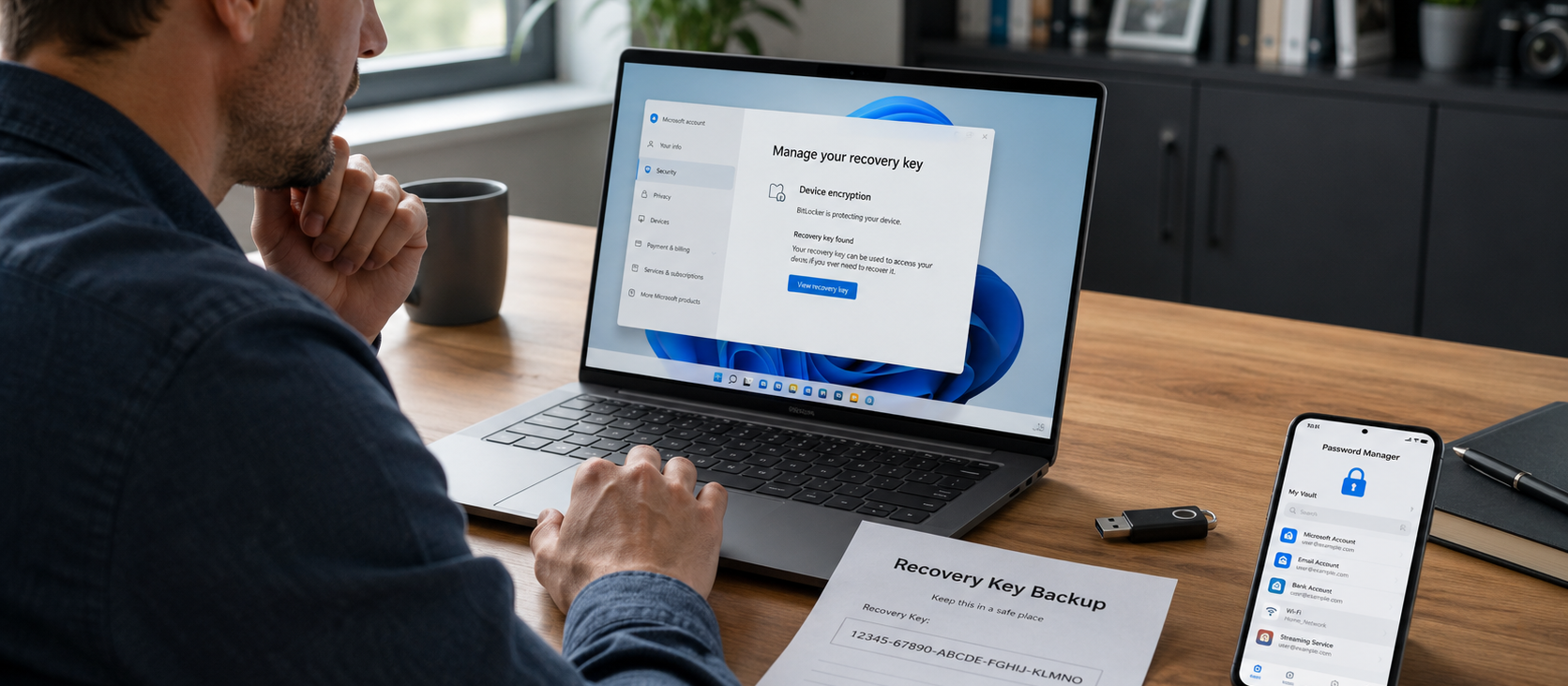
If your Windows 11 PC was set up with a Microsoft account, the key is stored with that account. Microsoft points to the same place through two addresses: aka.ms/myrecoverykey or account.microsoft.com/devices/recoverykey.
Open that page while everything is calm and working, and check whether a recovery key for your PC is listed there. Don’t wait until the blue screen is already staring back at you.
Then store that key somewhere outside the encrypted PC, for example:
Printed out and kept in a secure place
On a USB drive that is not permanently plugged into the computer
In your password manager, if you use one
The key idea is simple: If the computer won’t boot, a document stored on that same computer won’t help you. A screenshot saved locally on that drive won’t help either.
Just take a moment to check whether encryption is active on your system at all. On Windows 11 Home devices, it’s worth looking at the device encryption settings. On Pro systems, check BitLocker management. But the important step is the same either way: find the key once and store it safely.
And what about Mac and Linux?
On a Mac, the equivalent is called FileVault. On Linux, LUKS is common – same principle, same logic, same risk if you lose the recovery information.
Bottom line: Don’t let it scare you – just be prepared
BitLocker is neither hero nor villain. It’s a security feature that is often already active on new Windows 11 PCs without people realizing it, and it protects data by being indifferent to who is locked out. That’s exactly why it can protect you so well after theft and still become a serious problem if you need the recovery key and don’t have it.
So if you use a modern Windows PC, the first question shouldn’t be whether BitLocker makes sense. It almost always does. The more important question is whether you know your recovery key and have stored it somewhere outside the computer.
You don’t need deep technical skills for that. It’s enough to check once whether encryption is active and to store the recovery key in a safe place outside the PC. Then encryption works for you, not against you.
Have you ever suddenly needed a BitLocker recovery key – or only discovered at that moment that encryption had been active on your PC all along? Share your experience in the comments.
Comments
Never return to windows anymore.
Softmaker runs on linux or use Libreoffice.
Difference is that LUKS is not enabled by default, you have to enable it, typically during installation. So no being caught unaware.
Siguiendo el consejo del autor guardo ahora mi clave en lugar seguro y accesible.
Muchas gracias
Always better to have a key someplace else.
Apple now has the recovery key for filevault stored in Apple Passwords by default.
Your ideas came too late for me. The laytop is dead.
Windows placed two BitLocker recovery keys on there on the same day in 2024. I have now printed them out and put them somewhere safe.
Why would it choose an external drive?
Whole disk encryption, especially for laptops on the move, has its uses. If you cannot risk losing your personal data (tax info etc.) to a thief, whole disk encrypt your device but save the recovery key AND have an off device data backup plan.
This is no Linux vs others discussion, it is something all users have to consider, what are my physical risks (device death, thief) and what is the recovery plan to cover those risks.
In today's environment, cloud based storage is less secure than ever.
Your best best is to keep your passwords in an encrypted Excel spreadsheet that resides on a flashdrive that you plug in only when you need to look up passwords. Modern day Excel uses AES-256 (Advanced Encryption Standard with a 256-bit key length) combined with SHA-1 or SHA-256 hashing and Cipher Block Chaining (CBC), the same encryption used by banks and the U.S. Government.
Yes, keeping your passwords on an offline flash drive is less convenient, but it is far more convenient than dealing with having all your passwords fall into the wrong hands.
The only people who really need encryption are maybe CEO's or other business execs who do a lot of traveling and have large amounts of sensitive data.....or.....Hunter Biden.
You average home user doesn't needs this and it just causes problems. They never turned it and an never saved the key anywhere.....their computer crashes and now there's no way to recover their data. It's ridiculous.
windows 11, anche se magari lo metterebbe in automatico, si può sempre togliere